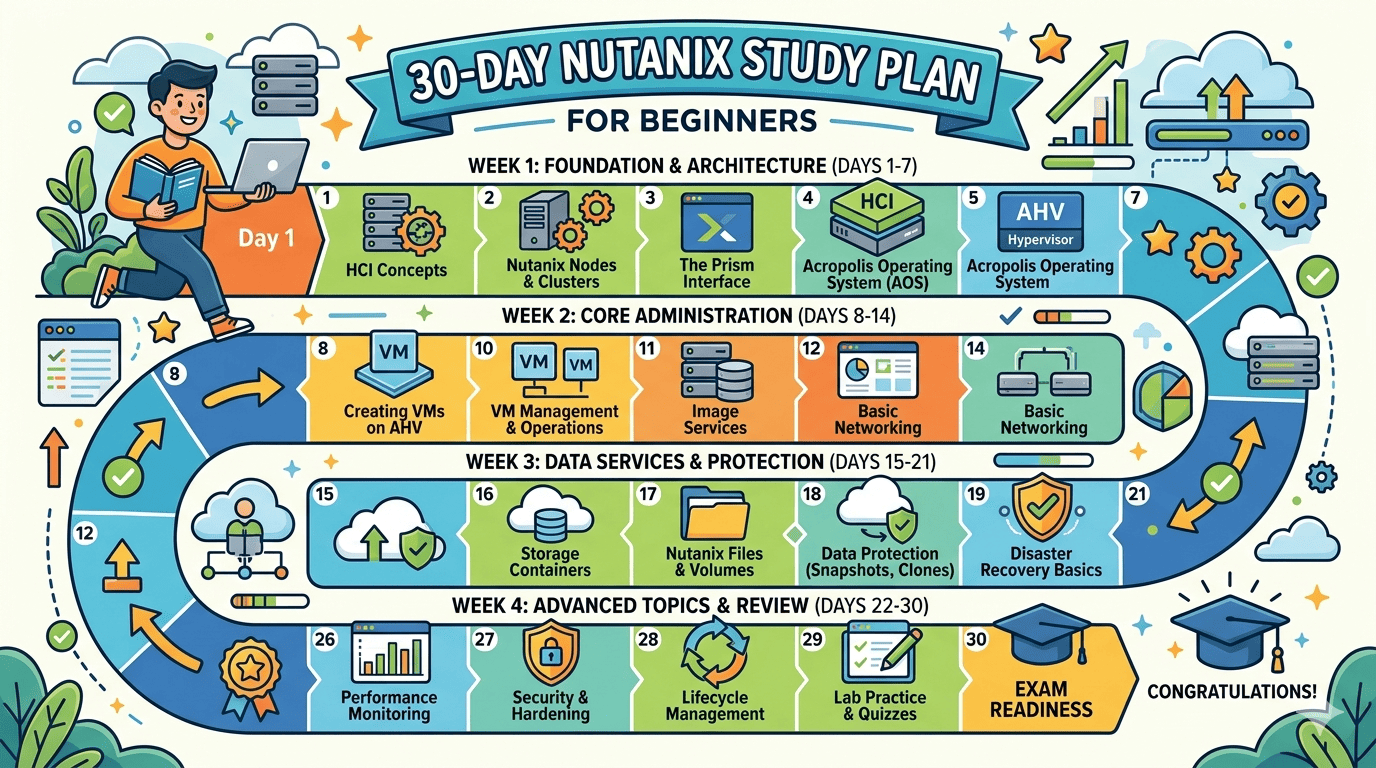
Nutanix Study Plan for Beginners – only 30 Days This 30-day Nutanix Study Plan is built for a true beginner and is aligned to the official Nutanix Hybrid Cloud Fundamentals (NHCF) learning path plus the official Nutanix Certified Associate (NCA) objective areas. NHCF is designed for people new to Nutanix and covers Prism, AOS, AHV, cluster concepts, storage, networking, VM management, health monitoring, licensing, and LCM. The official NCA Exam Prep course is meant to refresh NHCF topics in condensed form and includes practice questions, with NHCF listed as a prerequisite. If you can, do the labs on Nutanix Community Edition because it gives you a free, community-supported Nutanix environment with AHV, AOS, Prism, and built-in networking/security for testing and learning. With enough hardware, CE can also support limited noncommercial use of Prism Central and related components. Nutanix Study Plan: Use a simple daily Plan , so the plan stays sustainable: spend about 60–90 minutes on weekdays and 90–120 minutes on weekends. A good split is 20–30 minutes theory, 30–60 minutes lab, and 10–15 minutes notes/review. Your goal is not to memorize every screen, but to become comfortable navigating Prism Element and Prism Central, creating and managing VMs, understanding storage/networking basics, and recognizing health, alerts, and LCM workflows. Week 1: foundations, architecture, and environment setup Week 1 follows the official NHCF opening topics: three-tier vs HCI, cluster concepts, Prism Central vs Prism Element, and hands-on exploration. By the end of this week, you should be able to explain what Nutanix does and log in to your lab confidently. Day Daily topic What to study Lab practice Daily outcome 1 Nutanix big picture Learn HCI vs three-tier infrastructure, and where AHV, AOS, Prism, and Prism Central fit Draw your own architecture diagram of node, cluster, storage, and management components You can explain Nutanix in plain English 2 Core Nutanix products Study Nutanix Cloud Infrastructure basics, Prism Element vs Prism Central, and cluster terminology Create a glossary: node, block, cluster, container, VM, image, RF You know the main product names and roles 3 Lab planning Review hardware needs and decide whether to use CE, nested lab, or observation-only practice Build your lab checklist: CPU, RAM, disk, network, ISO files, admin workstation You have a realistic lab plan 4 Community Edition install Read the CE overview and understand what features are included Install CE or prepare your environment for installation You have a working or nearly working beginner lab 5 First login to Prism Learn the basic Prism layout and where health, storage, network, and VM sections live Log in and take screenshots/notes of each major dashboard You can navigate the UI without guessing 6 Prism Element vs Prism Central Learn when to use Element and when to use Central Make a 2-column comparison sheet: “use Element for…” and “use Central for…” You understand the control-plane difference 7 Weekly review + milestone 1 Revisit all week-1 notes and weak areas Give yourself a 15-question self-quiz and repeat any failed lab steps Milestone: explain HCI, identify Nutanix components, navigate Prism Milestone 1 At the end of Day 7, you should be able to describe three-tier vs HCI, define the main Nutanix components, and explain the difference between Prism Element and Prism Central. Those are explicitly part of the NHCF introductory flow. Week 2: storage, networking, images, and VM basics Week 2 maps directly to the NHCF sections on hardware/storage concepts, networking, image management, and VM management. It also supports the NCA objective areas around storage components, basic AHV networking, and VM tasks. Day Daily topic What to study Lab practice Daily outcome 8 Hardware and storage concepts Learn nodes, clusters, physical storage, storage pools, containers, RF, replication factor, snapshots Explore hardware/storage dashboards and note what each panel shows You understand storage building blocks 9 Storage containers Study storage containers, capacity reservation, resiliency, and optimization concepts Create or inspect a storage container and note its settings You can identify where storage settings live 10 AHV networking basics Learn managed/unmanaged networks, VLAN basics, VM NIC attachment Inspect available networks and map which VMs would use which network You understand basic AHV networking language 11 Network visibility Learn how Prism shows network configuration and visualizes connectivity Use network dashboards/visualizer if available and trace a sample path You can read network views inside Prism 12 Image service Learn what image management does and why it matters for VM provisioning Upload or inspect an OS image and document the steps You know how images feed VM creation 13 VM creation Learn VM creation workflow, compute sizing, disks, NICs, and boot media Create one test VM, power it on, and document all selected settings You can build a basic VM end to end 14 Weekly review + milestone 2 Review storage, networking, image, and VM basics Recreate a VM from scratch without your notes Milestone: ready for basic admin tasks in Prism Milestone 2 By Day 14, you should be comfortable with the fundamentals that NHCF emphasizes for hands-on beginners: storage dashboards, containers, AHV networking, images, and basic VM creation and monitoring. This also starts aligning you to NCA expectations for basic VM tasks, storage components, and AHV networking. Week 3: VM lifecycle, protection, health, alerts, and reporting Week 3 in our Nutanix Study Plan , pushes you into operational work. This is where beginner knowledge becomes admin skill: snapshots, clones, recovery points, health monitoring, alerts, events, logs, and support workflows. These are official NHCF topics and also part of the NCA knowledge objectives. Day Daily topic What to study Lab practice Daily outcome 15 VM lifecycle operations Learn update, delete, export, clone, snapshots, and recovery points Clone a VM and take a snapshot or recovery point You understand VM lifecycle beyond creation 16 Categories and policies Learn categories, basic grouping, and affinity awareness Assign sample categories to VMs and note how they help organization You can organize workloads logically 17 Backup and DR fundamentals Study protection domains, remote sites, restore concepts, and migration basics Create a mock backup/restore plan for your lab VMs You understand basic data protection language 18 Monitoring health Learn cluster health, performance, alerts, and events in Prism Review